Address
Orile-Iganmu, Lagos, Nigeria
Work Hours
Monday to Friday: 9AM - 5PM
Weekend: By Appointment
Address
Orile-Iganmu, Lagos, Nigeria
Work Hours
Monday to Friday: 9AM - 5PM
Weekend: By Appointment

IT for the common Man
 ByMzeal01
We’ve all experienced that moment of dread. You’re deeply engrossed in an important project, perhaps preparing a crucial presentation or finalising a client report, and suddenly, your computer slows to an agonising crawl. Or worse, the fan begins to emit a loud, worrying whirring noise, signalling distress. In the unique and often challenging environment of Lagos, with its characteristic humidity and pervasive dust, computer hardware faces an accelerated battle against degradation. Heat and dust are not just minor annoyances; they are the silent, insidious killers of electronics, significantly shortening the lifespan of your valuable devices.
At MzealTek, our dedicated hardware engineering department routinely encounters dozens of preventable repairs every single week. These issues, ranging from overheating laptops to malfunctioning components, often stem from a lack of basic maintenance. To save you the significant financial burden and immense stress of frequent repairs or premature replacements, we have meticulously compiled this comprehensive guide. It offers seven essential, professional tips on how to effectively maintain your computer hardware, empowering you to extend your laptop’s life and ensure its optimal performance, just like a seasoned pro.
Dust is arguably the most common and destructive adversary of electronic devices. It acts as an efficient insulator, trapping heat inside your computer’s delicate internal components. This trapped heat forces your cooling fans to work overtime, spinning at higher RPMs and generating more noise, all in a desperate attempt to dissipate the excess warmth. Over time, this constant struggle leads to phenomena like “thermal throttling” (where your CPU intentionally slows down to prevent damage) or, in severe cases, can even result in catastrophic motherboard failure. The cumulative effect is a significant reduction in performance and a drastically shortened lifespan for your device.
•The Fix: Make it a routine to clean your computer every 3–6 months. The most effective method is to use a can of compressed air. Carefully blow out the dust from your laptop vents and keyboard crevices, and if you have a desktop, from inside the tower. Always ensure the computer is turned off and unplugged before cleaning. A crucial warning: Never use a vacuum cleaner to clean electronics. The static electricity generated by vacuum cleaners can easily discharge and fry sensitive internal components, causing irreparable damage.
Excessive heat is the primary enemy of both battery longevity and CPU performance. If your laptop consistently feels hot to the touch, it’s a clear indication that its internal cooling system is struggling to cope, leading to reduced efficiency and accelerated wear and tear on components.
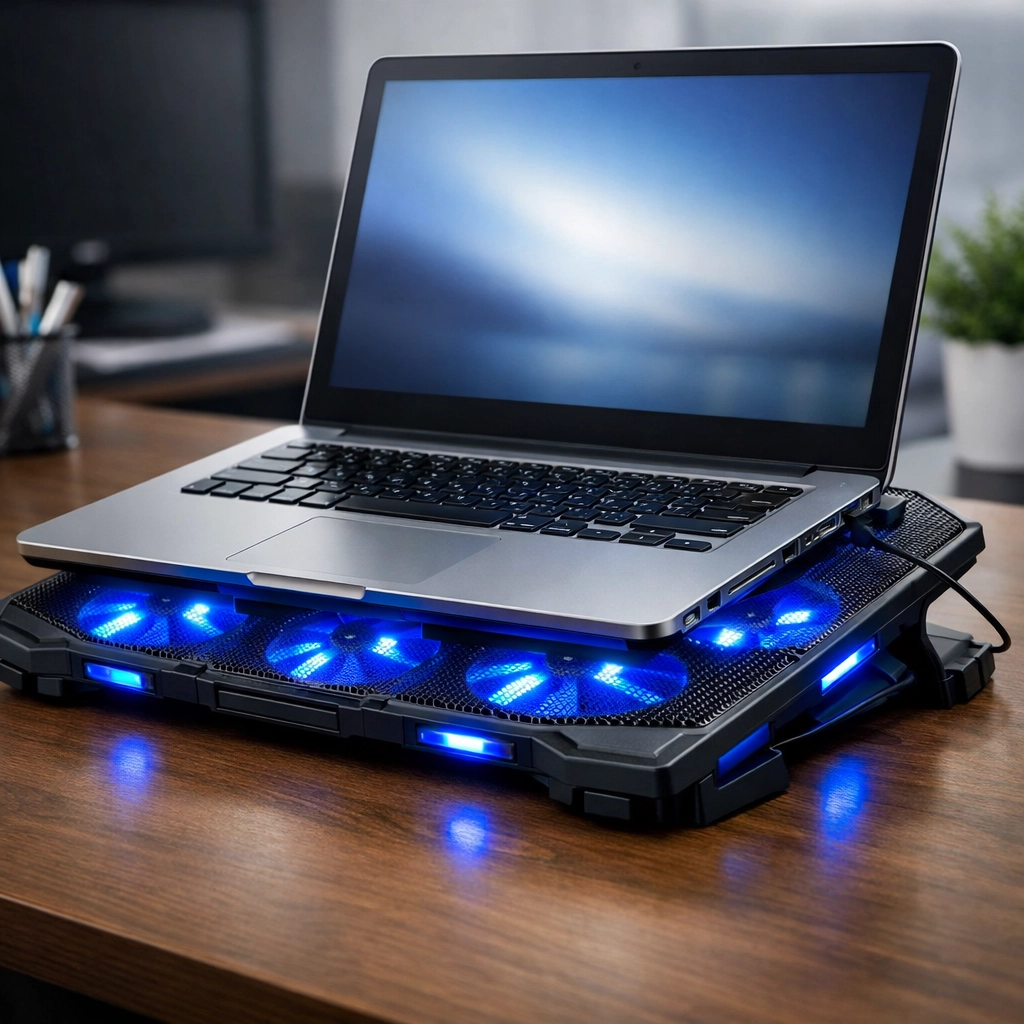
•The Pro-Tip: Always use your laptop on a hard, flat surface. Placing it on soft surfaces like a bed, pillow, or even your lap can block the crucial intake vents, preventing proper airflow and causing rapid overheating. If you frequently work in a warm environment or engage in resource-intensive tasks, consider investing in a cooling pad with built-in fans. These pads actively circulate air beneath your laptop, significantly improving heat dissipation and maintaining optimal operating temperatures. This simple addition can make a substantial difference in your laptop’s performance and lifespan.
Modern lithium-ion batteries, while highly efficient, have a finite number of “charge cycles” before their capacity begins to degrade. Continuously keeping your laptop plugged in at 100% charge 24/7, or conversely, allowing it to repeatedly drain to 0% before recharging, can accelerate this degradation process. Both extremes put undue stress on the battery’s chemical components.
•The Best Practice: Aim to keep your battery charge level between 20% and 80% whenever possible. This range is considered the “sweet spot” for maximising the lifespan of lithium-ion batteries. Many modern laptops now feature “smart charging” or “battery health management” features that can automatically optimise charging patterns to prolong battery life. Ensure this feature is enabled in your system settings. If you primarily use your laptop plugged in, consider enabling a battery saver mode that limits charging to 80%.
It’s a common misconception that “hardware” lag is always a hardware problem. Often, a sluggish computer is actually suffering from underlying software issues that indirectly impact hardware performance. For instance, if your hard drive is nearly full (e.g., 99% capacity), your operating system has to work significantly harder to manage files, swap memory, and perform basic operations. This constant struggle puts physical stress on the drive, leading to slower performance and potential premature failure.
•The Solution: Maintain at least 15% of your SSD/HDD space free at all times. Regularly uninstall programs you no longer use, clear your temporary cache files, and move large, infrequently accessed files to external storage or cloud services. Performing regular disk cleanup and defragmentation (for HDDs) can also contribute to smoother operation. A well-maintained software environment reduces the workload on your hardware, allowing it to perform more efficiently and last longer.
Are you among those who simply close their laptop lid at the end of the day, relying on “Sleep Mode” for convenience? While sleep mode is handy for quick pauses, it doesn’t fully clear your system’s RAM, and small errors or memory leaks can accumulate over time. This can lead to gradual performance degradation, unexpected glitches, and even system instability.
•The Recommendation: Make it a habit to restart your computer at least once every two days. A full restart flushes the system memory, clears temporary files, and allows all hardware drivers and software processes to reset properly. This simple action can resolve many minor performance issues, improve system stability, and ensure your computer starts each session with a clean slate, contributing to overall hardware health.
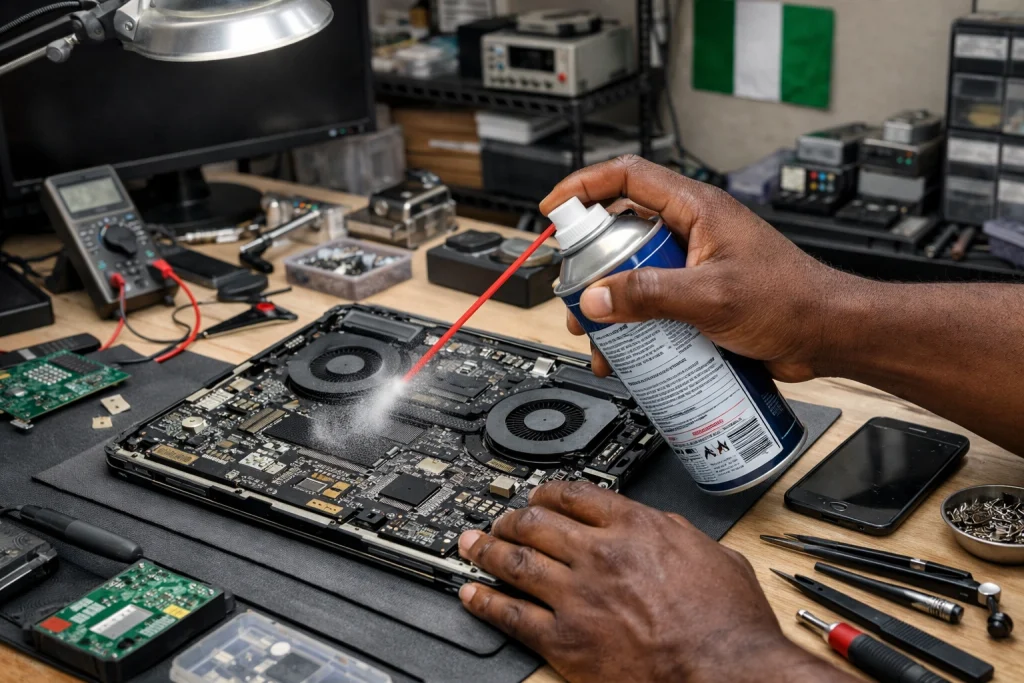
Your keyboard and screen are the most frequently interacted-with parts of your laptop and thus are highly susceptible to damage from daily use and accidental spills. Avoid eating or drinking directly over your workstation; a single coffee spill can short-circuit a motherboard in seconds, leading to costly repairs or total loss. For screen cleaning, steer clear of harsh household chemicals like window cleaner, which can damage anti-glare coatings and sensitive display layers.
•Cleaning Tip: For your screen, use a soft, lint-free microfibre cloth slightly dampened with water or a specialised screen cleaner. Gently wipe the screen in one direction. Avoid using paper towels or abrasive materials, as they can cause micro-scratches on modern displays. For the keyboard, use compressed air to dislodge crumbs and dust, and a slightly damp cloth for surface grime. Regular, gentle cleaning preserves the aesthetics and functionality of these critical components.
While DIY maintenance is excellent for prevention and addressing minor issues, it’s crucial to recognise when a problem transcends your capabilities and requires expert intervention. If you start hearing unusual grinding noises (often indicative of fan failure), experience persistent system crashes, or encounter the dreaded “Blue Screen of Death”, it’s a clear signal that a professional diagnostic is needed. Attempting complex repairs without the right tools or expertise can often exacerbate the problem.
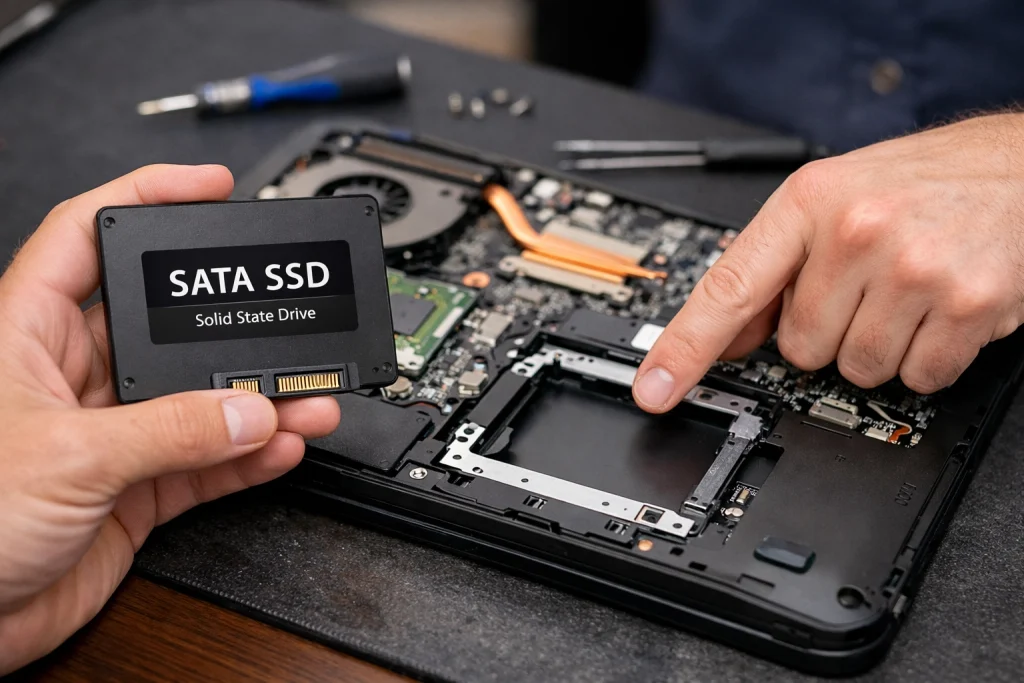
•Hardware Upgrades: Often, you don’t necessarily need to purchase an entirely new computer. A professional technician can assess your system and recommend targeted hardware upgrades, such as increasing your RAM or replacing an old Hard Disk Drive (HDD) with a faster Solid-State Drive (SSD). Add these upgrades, and you’ll be amazed at the performance boost. Suddenly your 5-year-old laptop will feel like new, and it will last you for years to come, saving you a tonne of money in the process.
Your computer is more than just a device; it’s a vital tool for productivity, communication, and entertainment, a significant investment in your personal and professional life. Taking just 10 minutes a month to perform these simple maintenance tasks can save you thousands of Naira in repair costs, prevent data loss, and ensure your device remains a reliable workhorse for years to come. Treat your computer with the care it deserves, and it will serve you faithfully.
Need a Professional Tune-Up? If your computer is running slow, overheating, or in dire need of a hardware upgrade, don’t hesitate. The expert technicians at MzealTek are here to help. We provide comprehensive computer engineering services, professional hardware repairs, and system optimisation solutions right here in Lagos, ensuring your tech is always at its best.